
What does the TraviTools Discord bot do?
The TraviTools Discord bot connects your Travian alliance workspace to your Discord server. It brings reported attacks, defence requests, operations and shared updates into dedicated channels, and lets members respond through buttons and slash commands. The owner connects the alliance once; members link their own Discord accounts.
Follow the owner setup checklist, then share the member checklist. Already connected? Jump to a feature to see how it works in TraviTools and Discord.
Before you start: accounts, plans and permissions
- A TraviTools account with your Travian world and player added.
- Verified ownership of your alliance workspace.
- An active Alliance plan. One subscription covers the alliance’s shared Discord features.
- Manage Server permission on the Discord account doing setup.
- One Discord server for one alliance on one Travian world.
- Each member links their own TraviTools and Discord accounts.
- For private watchlist DMs: a Personal plan, or the Personal benefits included for the Alliance subscriber. Other covered members do not inherit private DMs.
1. Owner setup: link your Discord account
- Sign in to TraviTools and add your world and player.
- Open Alliance management and finish the ownership setup.
- Select the Travian world you want to connect.
- Open Account → Discord and press Link Discord account.
- Authorize the Discord account that has Manage Server permission, then return to the Alliance section.
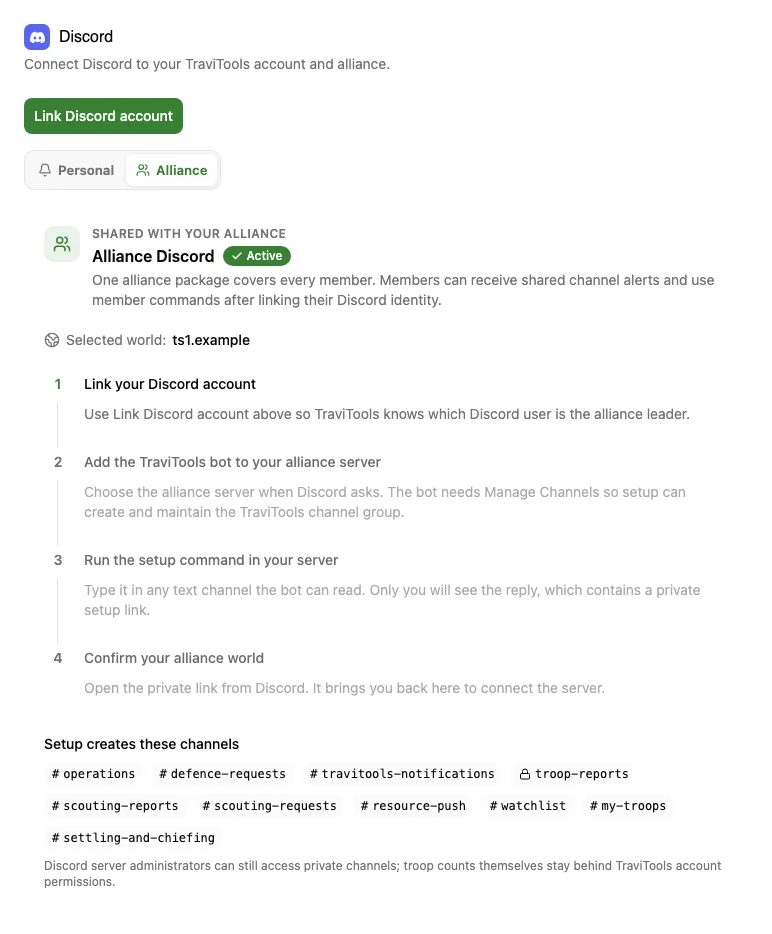
2. Add the bot and run the setup command
- Press Add bot to Discord in the setup checklist.
- Choose your alliance’s Discord server.
- Keep the requested bot permissions, including Manage Channels.
- Run
/travitools setupin a text channel the bot can read. - Open the private setup link using the same linked TraviTools account.
3. Confirm the alliance and test the connection
- Check the Discord server and selected Travian world in the setup preview.
- Press Connect selected alliance to create the TRAVITOOLS channel group.
- Press Send test message, then check Discord for delivery.
- Run
/travitools statusto check the connection. - Read each channel’s pinned introduction and review who can see its posts.
- Grant access to
#troop-reportsin TraviTools only to members who need it. - Discord administrators can access private channels; account permissions protect the actual troop reports.
- Check
#leaders-onlyfor defence approvals when required.
4. Member checklist: link Discord and publish your troops
- Join your alliance workspace on the correct Travian world.
- Open Account → Discord and press Link Discord account.
- Authorize the Discord identity you use in the alliance server. Members do not repeat
/travitools setup. - Open My Troops, select your player and check the village list.
- Enter counts, import a screenshot or paste the copied Troops tab from Travian. Review the numbers, then press Save changes.
- Run
/travitools troopsin Discord to check your villages and update counts privately. - Use
/travitools helpfor commands. Update saved counts as your army changes; the bot does not read your Travian account live.
Explore the Discord bot features
Setup is complete. The sections below show each feature in TraviTools and in Discord, with the action that connects them. Select a feature to jump straight to its walkthrough.
Defence requests and reported incoming attacks
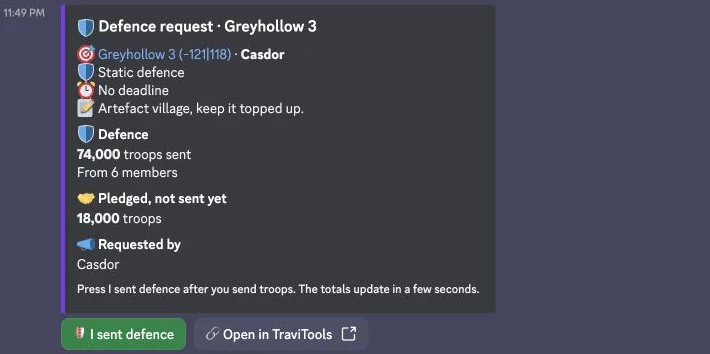
Publish an incoming attack from TraviTools to share it with the alliance’s defence workflow. The Discord post shows the attacker, target, landing time and wave count. These are attacks players report in TraviTools, so report a new threat rather than waiting for the bot to detect it.
To ask for reinforcements from Discord, run /travitools defence, pick a village or enter coordinates such as 144|-160, and optionally set troops, hours and a note. For example, request 30k troops within 2 hours with the note ‘infantry only’. Leave the troop amount empty for static defence. Requests subject to leader approval go through that approval step.
After sending reinforcements in Travian, press I sent defence on the post to log them. Progress updates in the shared workflow. The button records your contribution; you still send the troops in the game. Use /travitools incoming for a private list of the next five reported incoming attacks.
In TraviTools

In Discord
Operations: join in Discord, plan in TraviTools
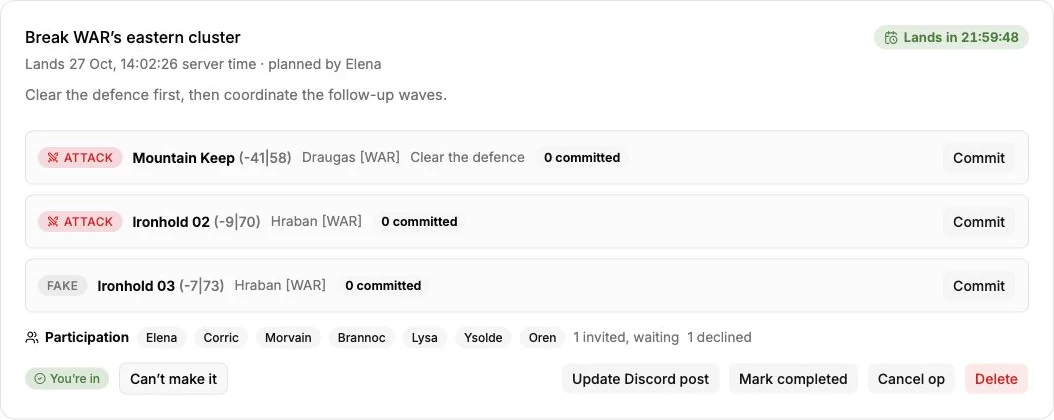
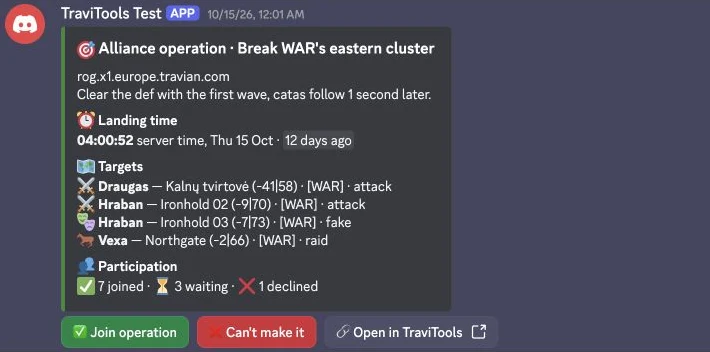
The alliance owner can publish an alliance-wide operation from Alliance Operations with its targets and landing time. Members press Join or Decline in Discord, and those responses appear in TraviTools. Open the operation in TraviTools to work with targets and send times.
Operation reminders are scheduled for 30 minutes and 5 minutes before landing. Invite-only operations cannot be posted to a shared Discord channel. Joining an operation records participation; attacks still need to be sent in Travian.
In TraviTools
In Discord
Scouting: request a village and import report screenshots
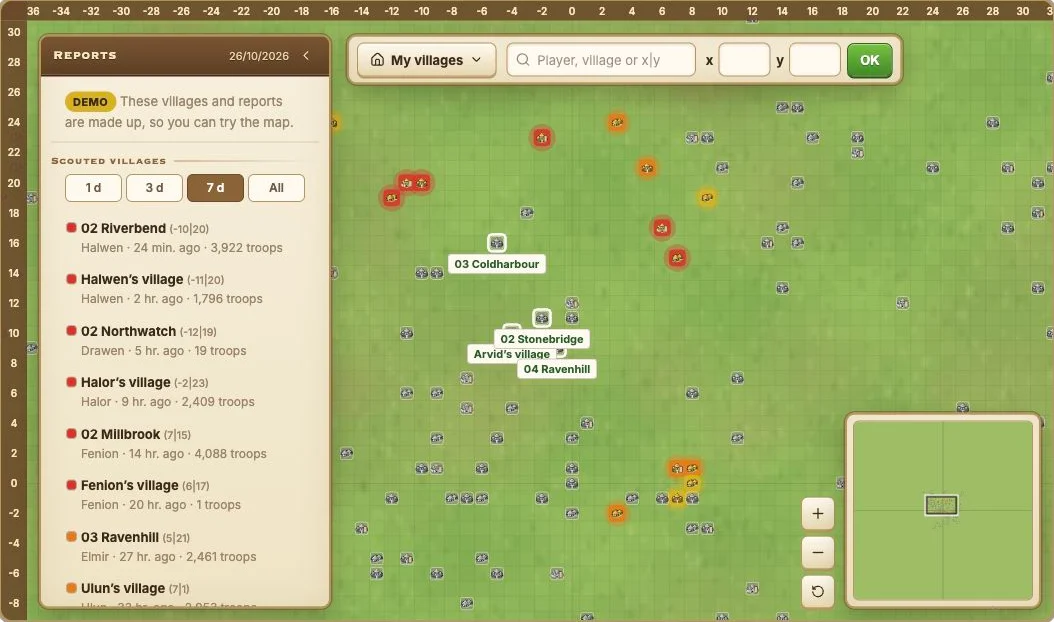
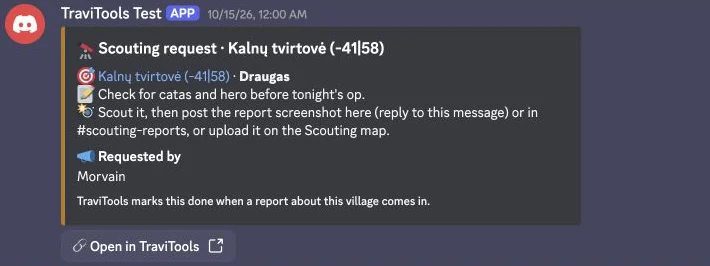
Run /travitools scout and type a player, village or x|y, then choose the target village. Add a note explaining what you need checked. The request stays pinned in #scouting-requests until it is fulfilled, and the requester is tagged when a matching report is read.
To contribute results, reply to a request with a full scouting-report screenshot, post it in #scouting-reports, or upload it on the Scouting map. Include the attacker and defender lines. Multiple screenshots per Discord message are supported; battle reports can also show the troops left after losses.
An eyes reaction means the screenshot was picked up and will be read when a member next opens the Scouting map. A check mark means it is on the map. A question mark means the player was found but the village needs choosing on the map. A cross means the player was not found on the connected world. Read any bot reply if an import fails.
In TraviTools
In Discord
Resource pushes: log contributions in Discord
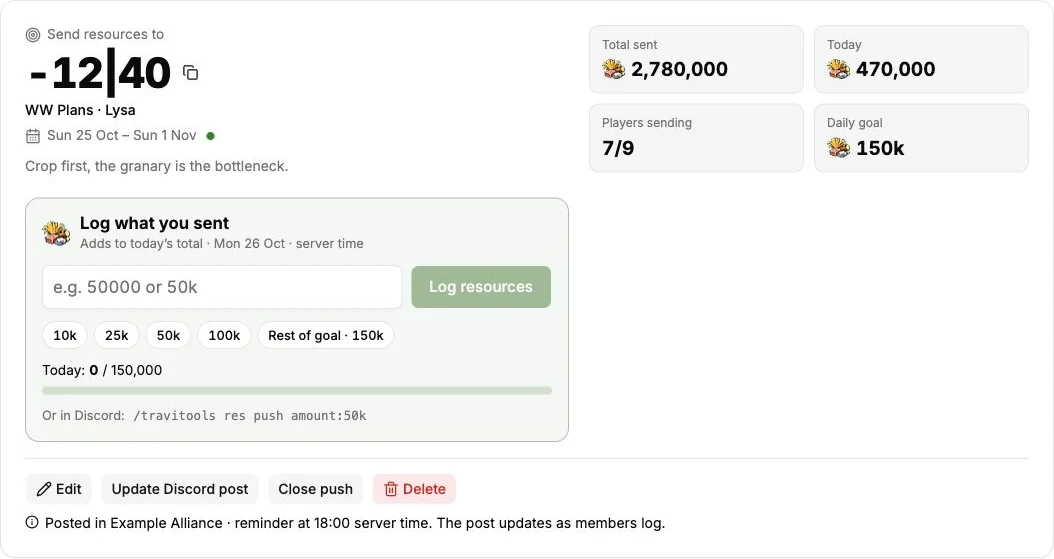
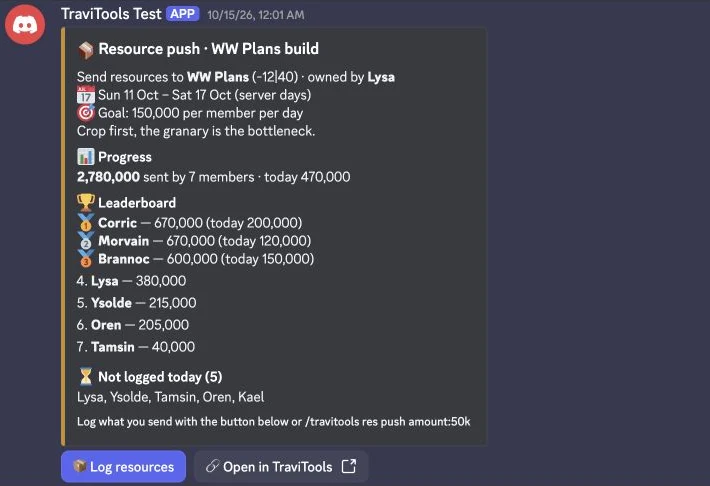
Leaders start a push in Resource Push. Its Discord post shows the destination, dates and a live contribution leaderboard. After sending resources in Travian, press Log resources or run /travitools res push amount:50k. Repeated entries add to your total for that day in server time; correct mistakes in TraviTools.
Daily push reminders tag members who have not logged a contribution, and a final summary closes the push. The Resource Push page is available free; Discord coordination is part of Alliance.
In TraviTools
In Discord
Troop updates and private alliance reports
For troops, use /travitools troops or the Update my troops button in #my-troops. Select a village and edit the private form’s prefilled counts. Only the owner and members explicitly granted troop-report access can use /travitools alliance-troops to see the alliance summary. Counts are returned privately rather than posted in a shared channel.
The owner can change or disable troop count reminders in Discord settings. Reminders post in #my-troops at 18:00 server time and tag members whose saved counts are older than the chosen interval.
In TraviTools
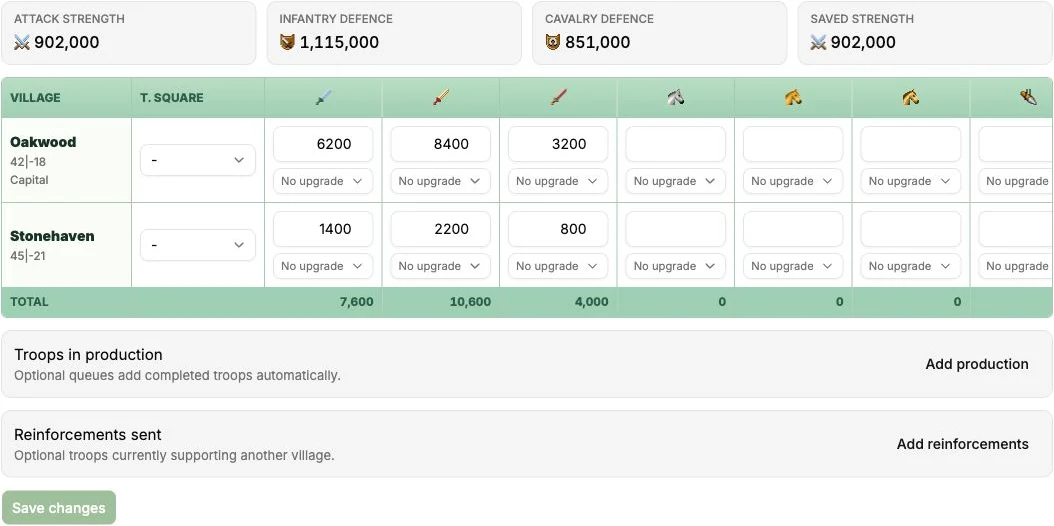
In Discord
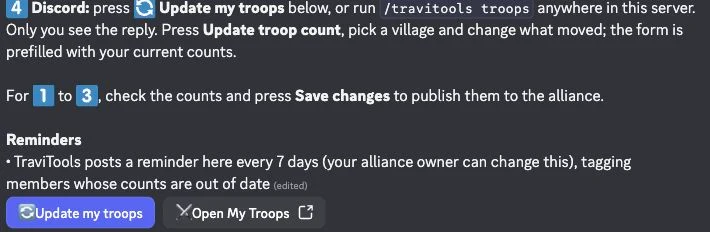
Settling and chiefing: reserve targets without overlap
Find the target coordinates on the TraviTools Map, then manage the claim in Discord. The claim board lives in Discord; its completion checks use TraviTools’ daily world-map updates.
Use the buttons in #settling-and-chiefing: I am settling for an empty tile, I am chiefing for a village, or Free to chief to offer a village to the alliance. Members can reserve offered villages. The board shows current claims; discuss a claim in the thread under its post.
TraviTools checks claims after each daily map update. It marks a successful claim and tags the claimant, or closes a claim if someone else takes the target. An unfulfilled reservation reopens after 3 days; settling and chiefing claims close after 7 days without appearing on the map. Members can cancel their own claims, and leaders can remove claims.
In TraviTools
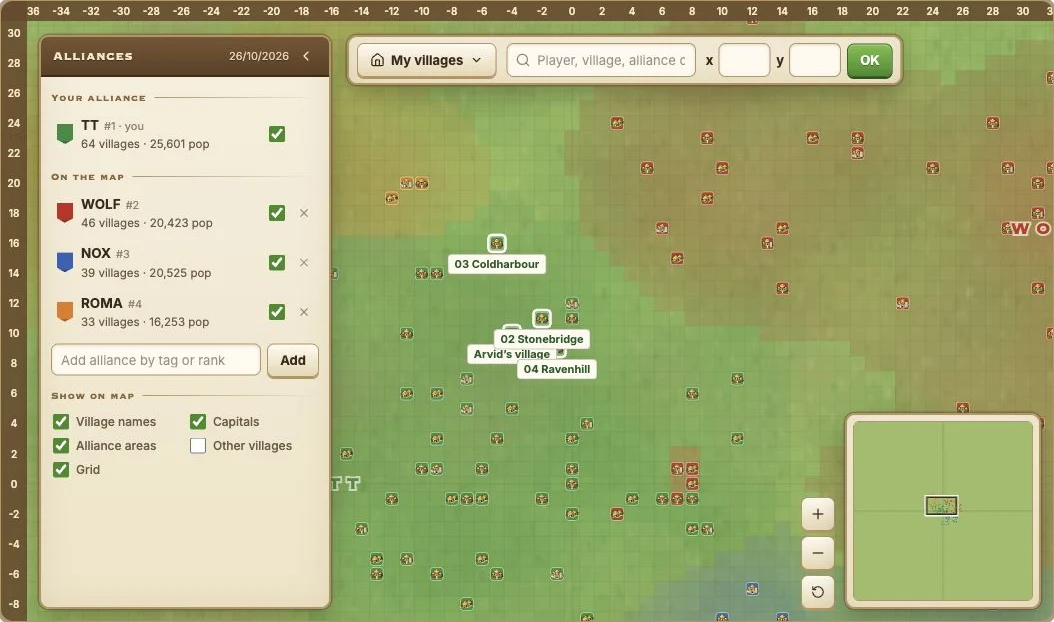
In Discord
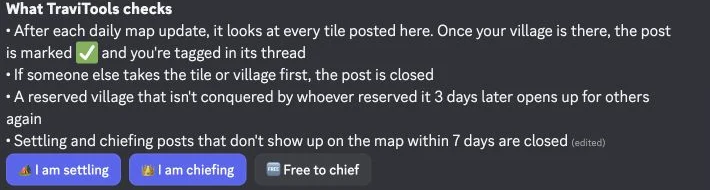
Alliance watchlist: shared daily alerts
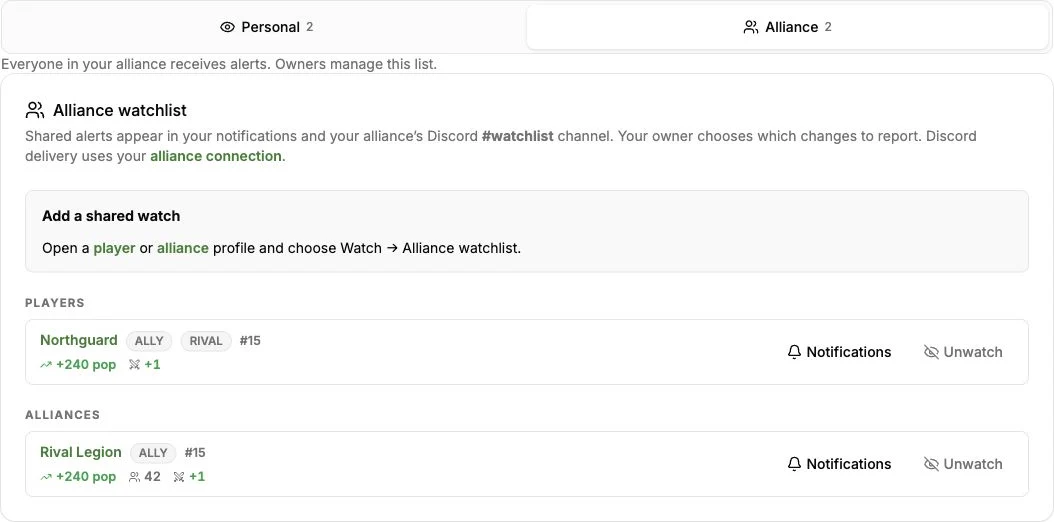
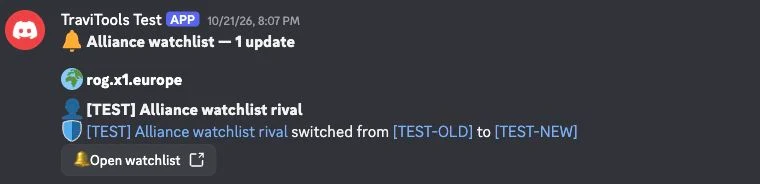
The owner chooses which players and alliances to follow for the shared watchlist channel. Daily updates can include settlements, conquests, membership changes, unusual growth and inactivity. These use refreshed world data rather than live in-game monitoring.
In TraviTools
In Discord
Personal watchlist notifications by Discord DM
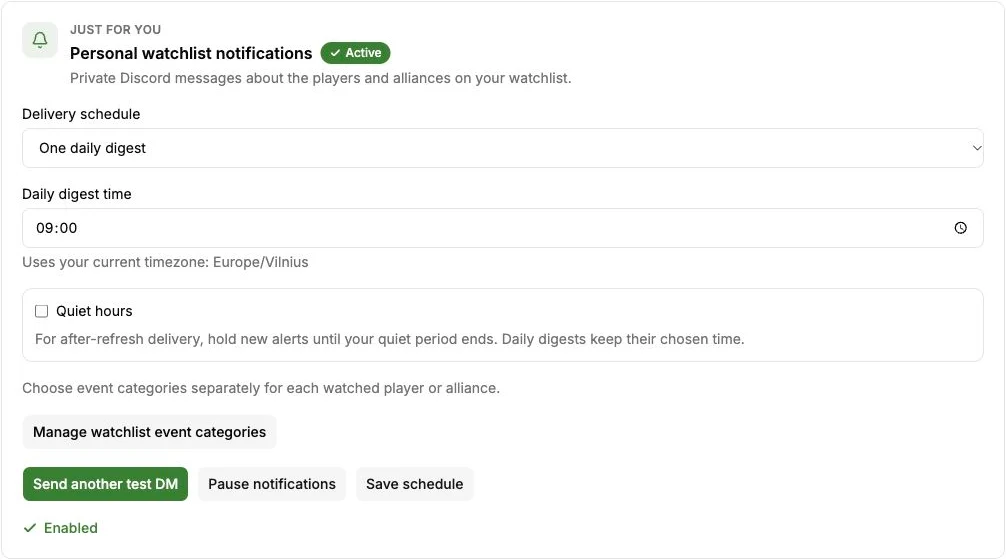
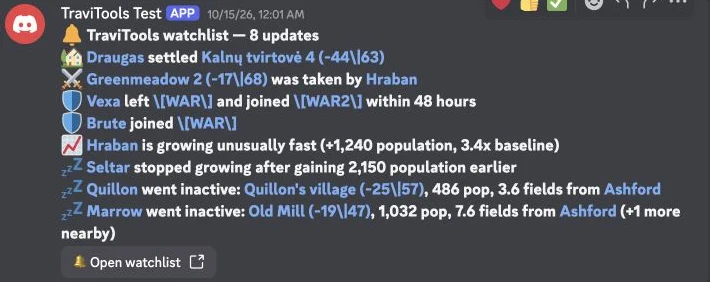
For your own private alerts, open the Personal section of Discord settings. Choose delivery after each data refresh or one daily digest, configure quiet hours if useful, and press Enable and send test DM. A successful test enables notifications. Choose event categories for each entry on your Watchlist.
The bot and your Discord account must share a server, and you must allow its DMs. Personal alerts stay in your DMs; they are separate from the alliance’s shared watchlist.
In TraviTools
In Discord
TraviTools Discord slash command reference
Type /travitools in Discord to see the available commands and fields. Setup requires the owner workflow; member commands require a linked account and access to the connected alliance.
| Command | What it does |
|---|---|
/travitools setup | Owner setup link; requires Discord Manage Server permission. |
/travitools status | Check the alliance connection. |
/travitools incoming | Privately list the next five reported incoming attacks. |
/travitools defence | Request defence; village is required, troops, hours and note are optional. |
/travitools scout | Request scouting for a village, with an optional note. |
/travitools troops | View your villages and update your troop counts privately. |
/travitools alliance-troops | Private alliance troop summary for the owner and authorised members. |
/travitools res push amount:50k | Add 50,000 resources to today’s push contribution after sending them in Travian. |
/travitools help | Show help for the bot’s commands. |
Troubleshooting setup, commands and delivery
The command is missing: check that you added the bot to the correct server and are using a channel it can access. New commands can take time to appear; restart Discord and try again.
Setup is refused: check both roles: you must own the TraviTools alliance workspace and have Manage Server permission in Discord. Link the same Discord identity, select the correct world and make sure the Alliance plan is active. If the private link has expired, run /travitools setup again.
A member cannot use commands: check that they joined the correct alliance workspace, linked their own Discord identity and are using the connected Discord server. If no villages appear in /travitools troops, save the player’s villages once in My Troops.
No channel messages arrive: open Discord settings, check whether the connection is paused, read its delivery error and use Send test message. Verify the bot can view and send messages in the destination channel and still has Manage Channels for channel maintenance.
Personal DMs fail: share a server with the bot, allow direct messages, then send another test DM. Check the personal plan entitlement and whether notifications are paused. A daily digest or quiet period can explain why an enabled alert has not arrived yet.
Troop summary access is denied: the alliance owner must explicitly grant troop-report access. Linking Discord alone does not grant permission to see everyone’s troops.
Common questions
How do I add the TraviTools bot to my Discord server?
The verified TraviTools alliance owner opens Account → Discord, links their Discord identity, adds the bot, and runs /travitools setup in the server. Open the private setup link, confirm the alliance world and send a test message. Setup requires an active Alliance plan and Discord Manage Server permission.
Does every alliance member need an Alliance subscription?
No. One Alliance subscription covers the connected alliance’s shared Discord features. Members join the TraviTools alliance workspace and link their own Discord accounts. Private watchlist DMs require separate Personal entitlement, which is included for the Alliance subscriber.
Does the Discord bot automatically detect Travian attacks or send troops?
The bot shares attacks reported in TraviTools and coordinates defence contributions and operations. Players still report threats, send troops and send resources in Travian. World watchlist events use refreshed map data.
Who can see alliance troop counts in Discord?
Only the alliance owner and members explicitly granted troop-report access can see the alliance summary. Members can update their own counts privately with /travitools troops. Troop counts are not posted in shared channels.